Overview
This article outlines the step-by-step instructions for using the captioning functions in ScreenPal (Desktop application). This article assumes the user has some familiarity with ScreenPal and content creation. If you are new to ScreenPal, please see the article: Article - Getting Started with ScreenPal
Note: This article only describes the process using the ScreenPal desktop app, this does not apply to using the online recorder.
To watch a quick video tutorial about how to add captions to your recordings, click here.
Using the Captioning Functions
- Open ScreenPal on your device and sign in to your ScreenPal account (if not logged in). This login utilizes your NEOMED Microsoft account login.
- Select a video you have previously uploaded, or create a new content using the Record button, located in the upper right corner of the home screen.

- Click on your video you wish to edit. Once open, click on the +Captions button to display the captions options. You will see three (3) captioning options:
- Captions from file: This option allows you to upload a captions or text file from your PC.
- Speech-to-text: This option will automatically convert the video's spoken dialogue into captions.
- Blank Captions: This option will allow you to manually type or paste captions into your video.
- You can add captioning in more than one language; however, you cannot have multiple captioning in the same language. You must choose a language option for each caption type.

Add captions from a file
- Select Captions from file and then click Start. File Explorer opens.
- Select a captions file and click Open. The captions file is added to your video and the Captions Text box is displayed on the right side of the page, enabling you to edit the caption text that is displayed.
- When you are finished editing your captions, click OK to save your changes.
- Once you've added them, you can upload your recording to your NEOMED ScreenPal account by following the instructions in this short video tutorial.
Add captions using speech-to-text
NOTE: In order to use speech-to-text for captions, your video must include audio narration.
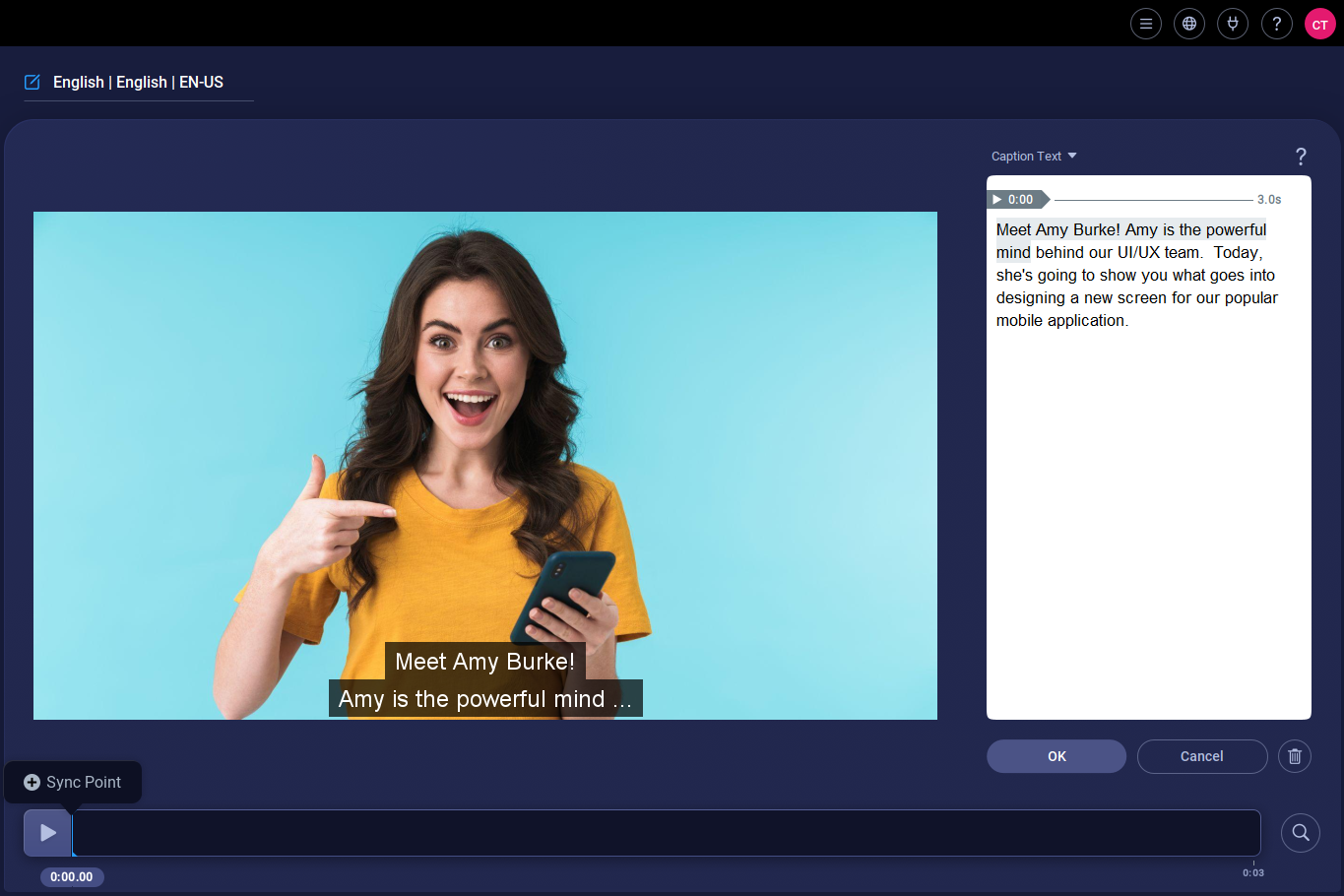
- Select Speech-to-text and then click Start.
- ScreenPal takes a moment to generate captions, then the video opens and the transcribed caption text is displayed under Captions Text on the right side of the page. You can edit the caption text as necessary.
- When you are finished editing your captions, click OK to save your changes.
- Once you've added them, you can upload your recording to your NEOMED ScreenPal account by following the instructions in this short video tutorial.
Create blank captions
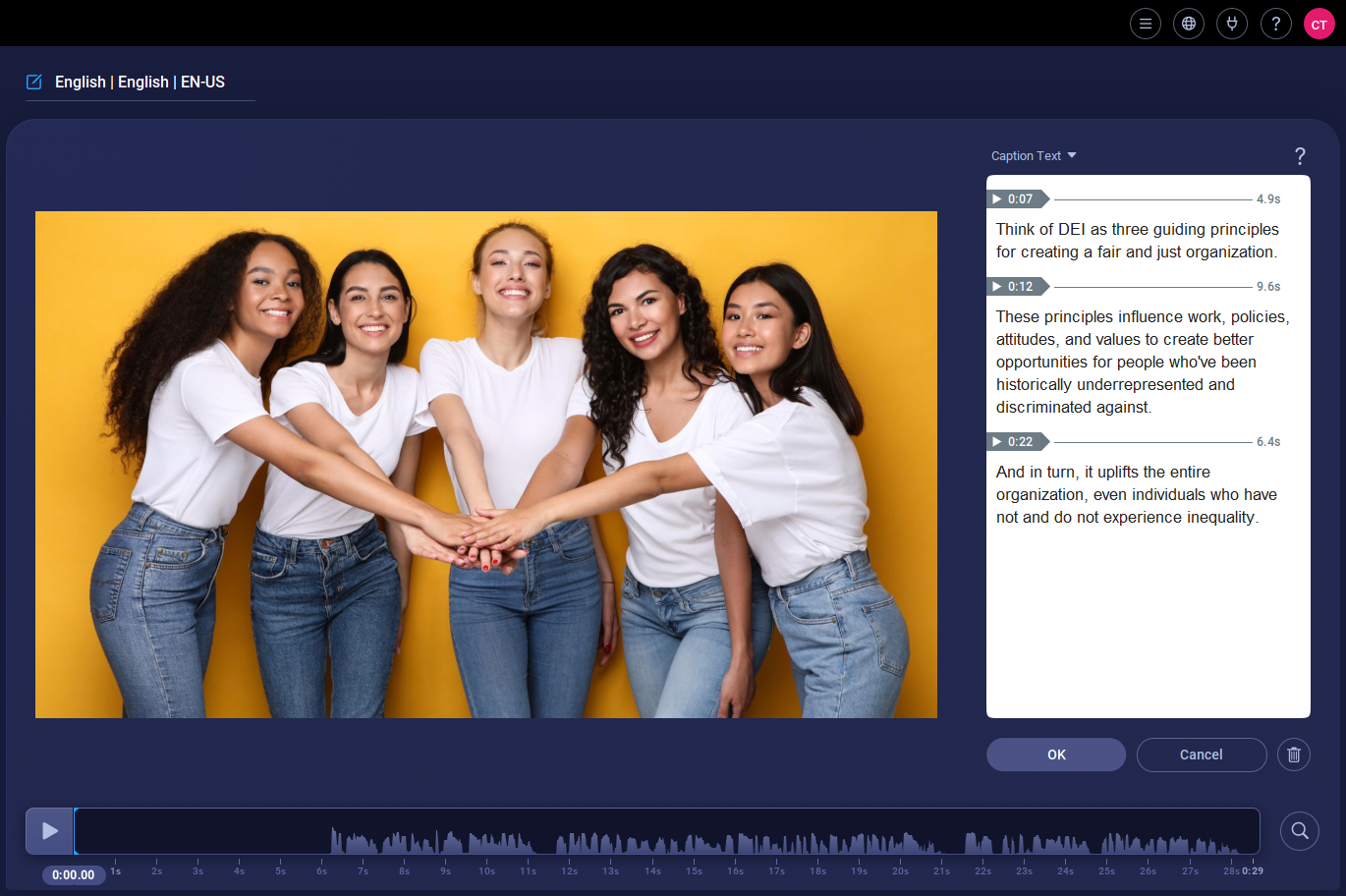
- Select Blank Captions, then click Start.
- Your video opens on the left side of the page and the blank Captions Text area is displayed on the right. You can play back your video and manually enter captions and set sync points.
- When you are finished, click OK.
- Once you've added them, you can upload your recording to your NEOMED ScreenPal account by following the instructions in this short video tutorial.
Additional Resources
For more ScreenPal tutorials, visit: How To Tutorials | Screen Recorder, Video Editor & Screen Capture.
If you have other questions, please call IT Education Services at extension 5969.